
Guide
FgoGotran Guide
Scope
FgoGotran is an overlay translation tool for the running FGO Japanese game screen.
Supported
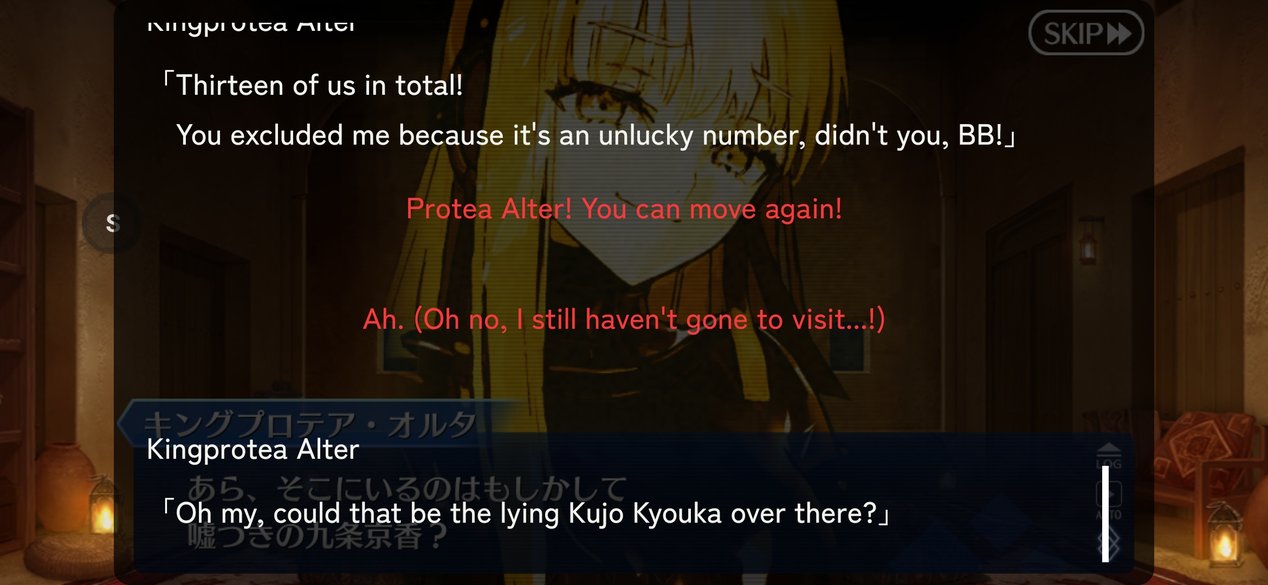
Live in-game screens, story, choices, and the game area you select in crop mode.
Not supported
Images, screenshots, screen recordings, video sources, or FGO material inside other apps.
1. First-time setup
Install and open FgoGotran
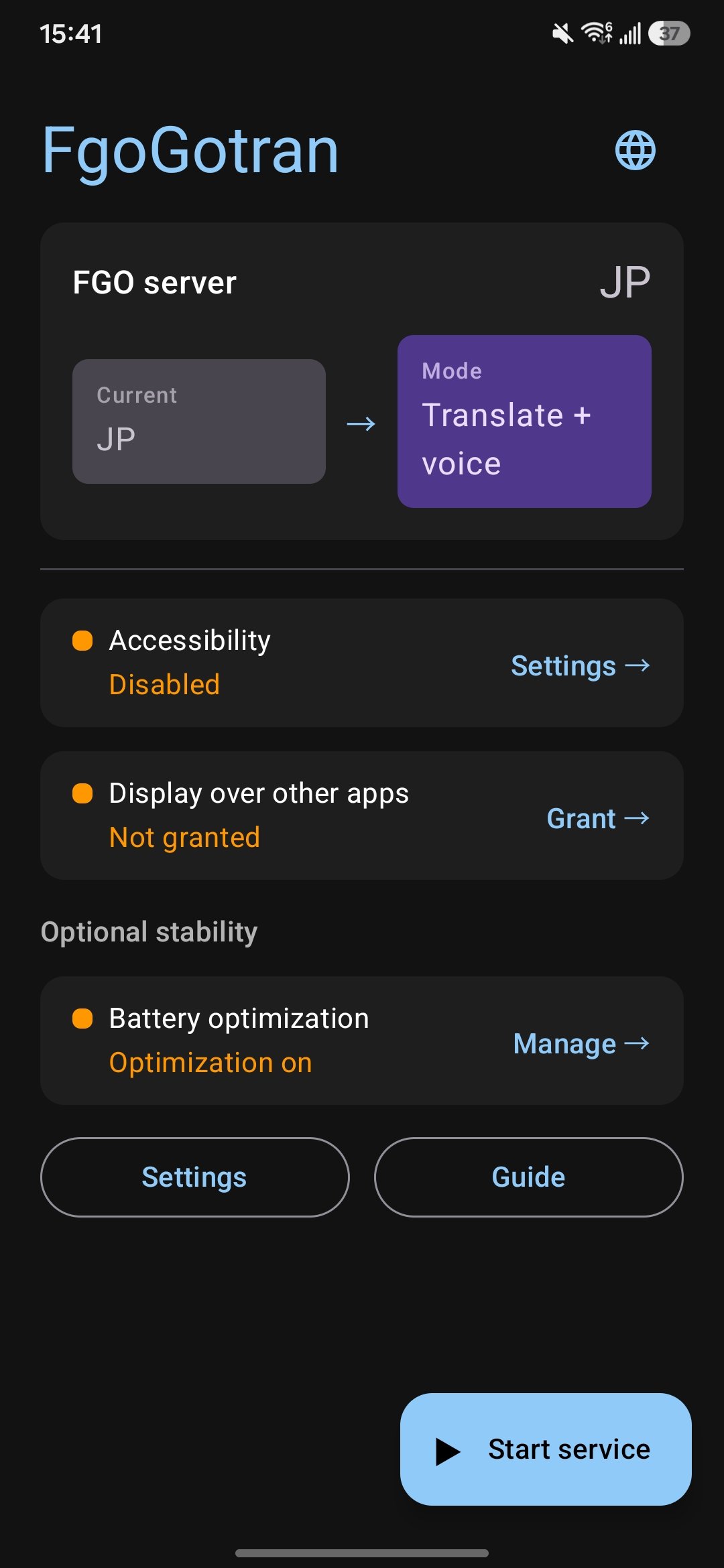
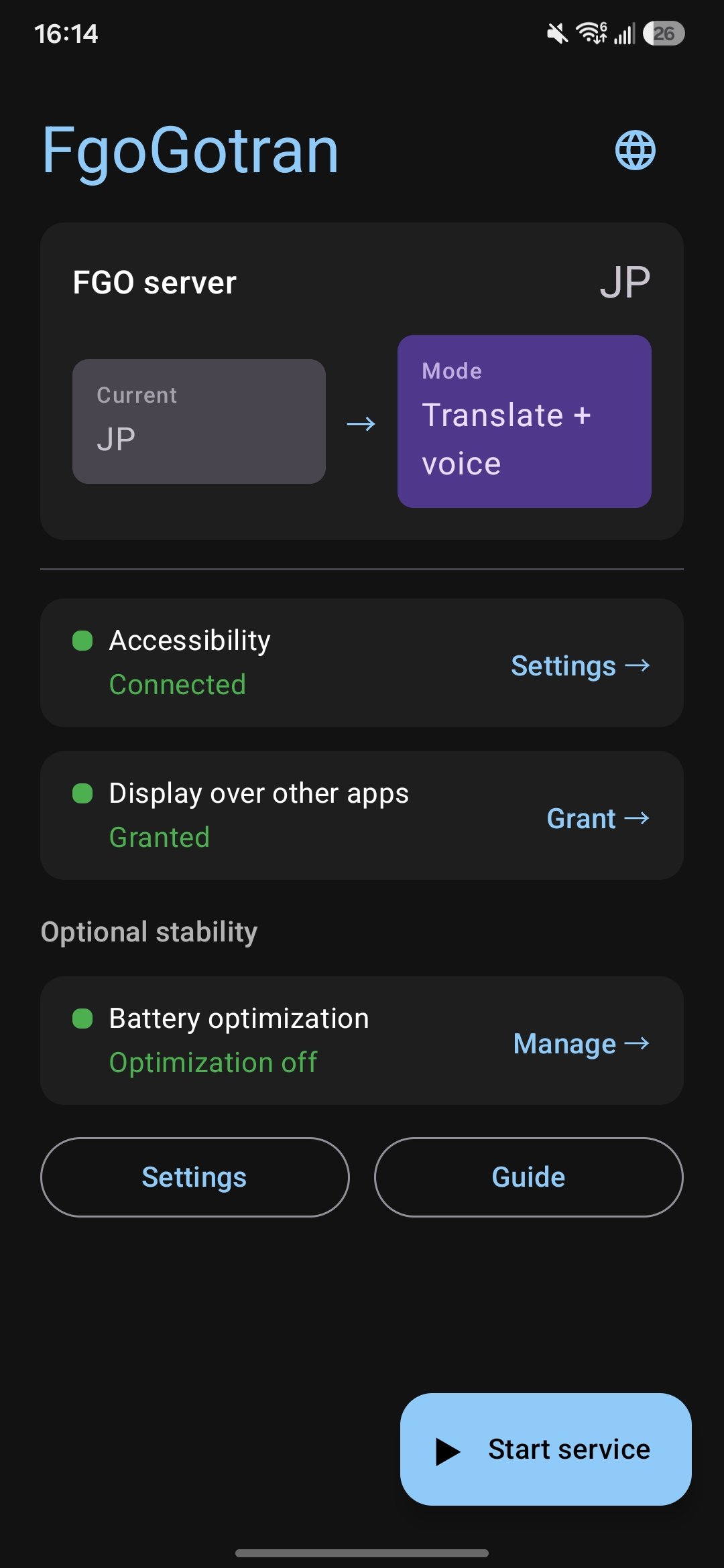
Choose the translation language: Simplified Chinese, Traditional Chinese or English. Follow the prompts to grant the accessibility service and overlay permissions, and disable battery optimization if you can.
Some phone brands do not offer a battery-optimization option; you can keep using the app without it.
Set the FGO story text speed
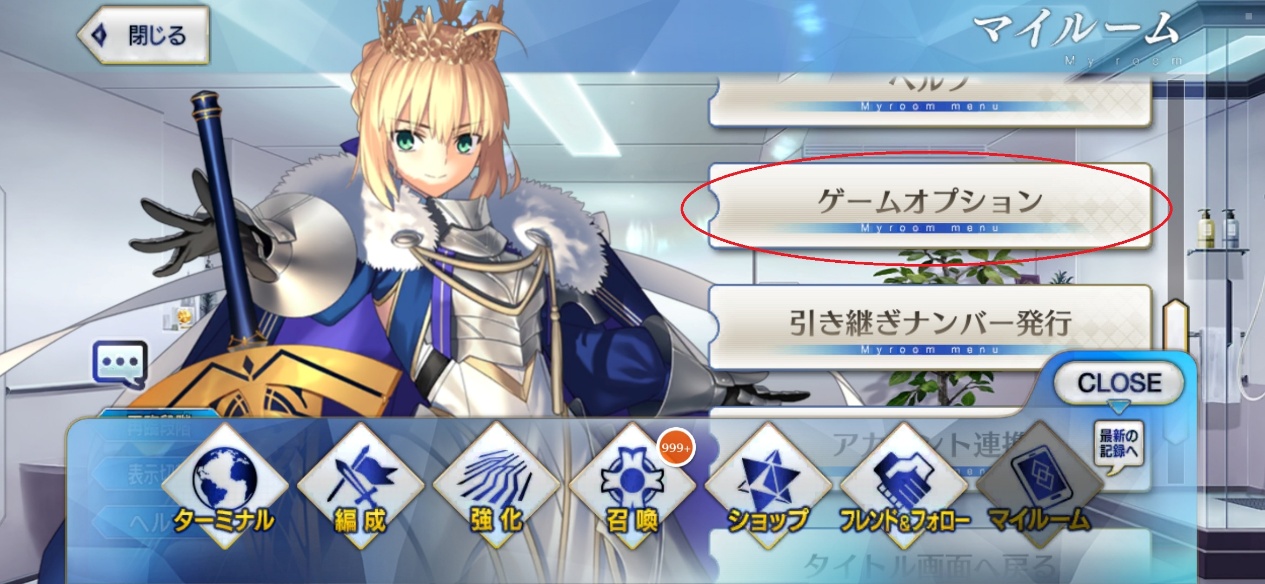
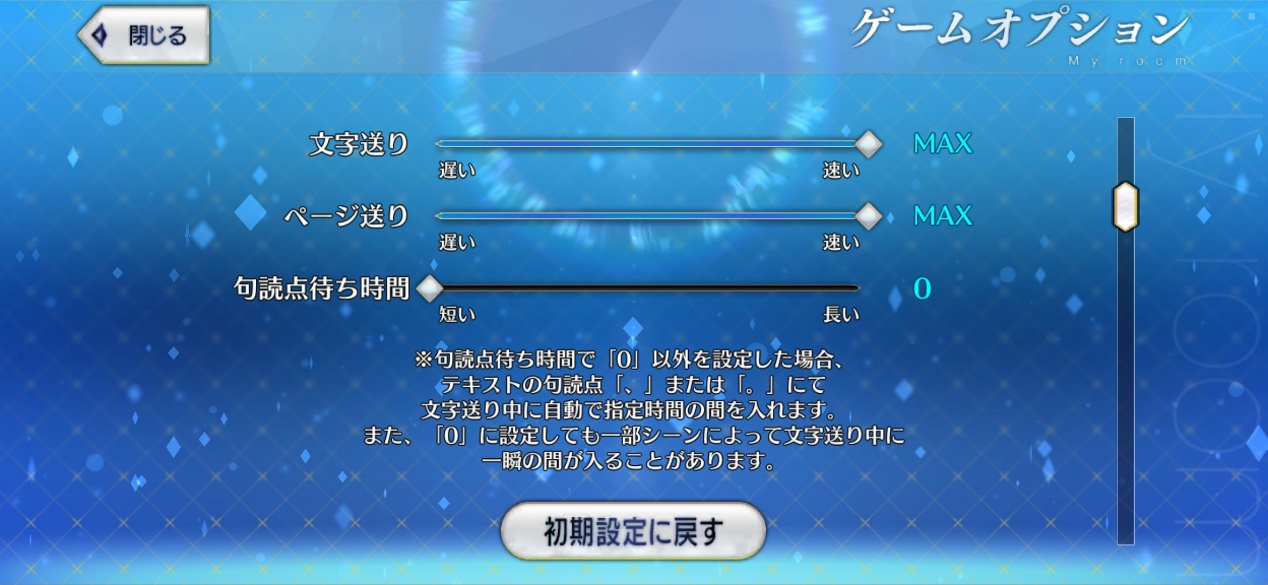
Open the FGO game settings and set the story-text options to the recommended values so OCR and auto mode stay stable.
Recommended: 文字送り MAX, ページ送り MAX, 句読点待ち時間 0.
Configure the API
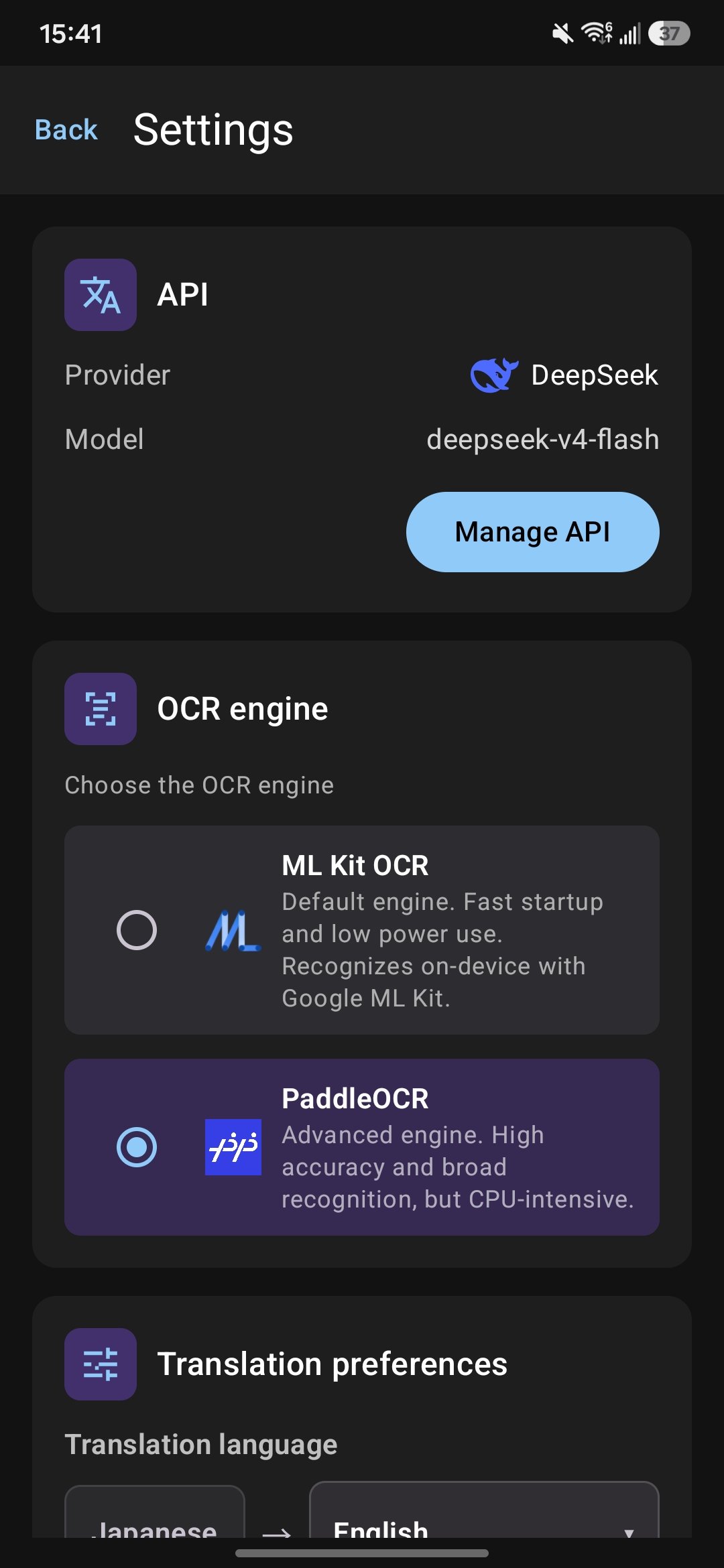
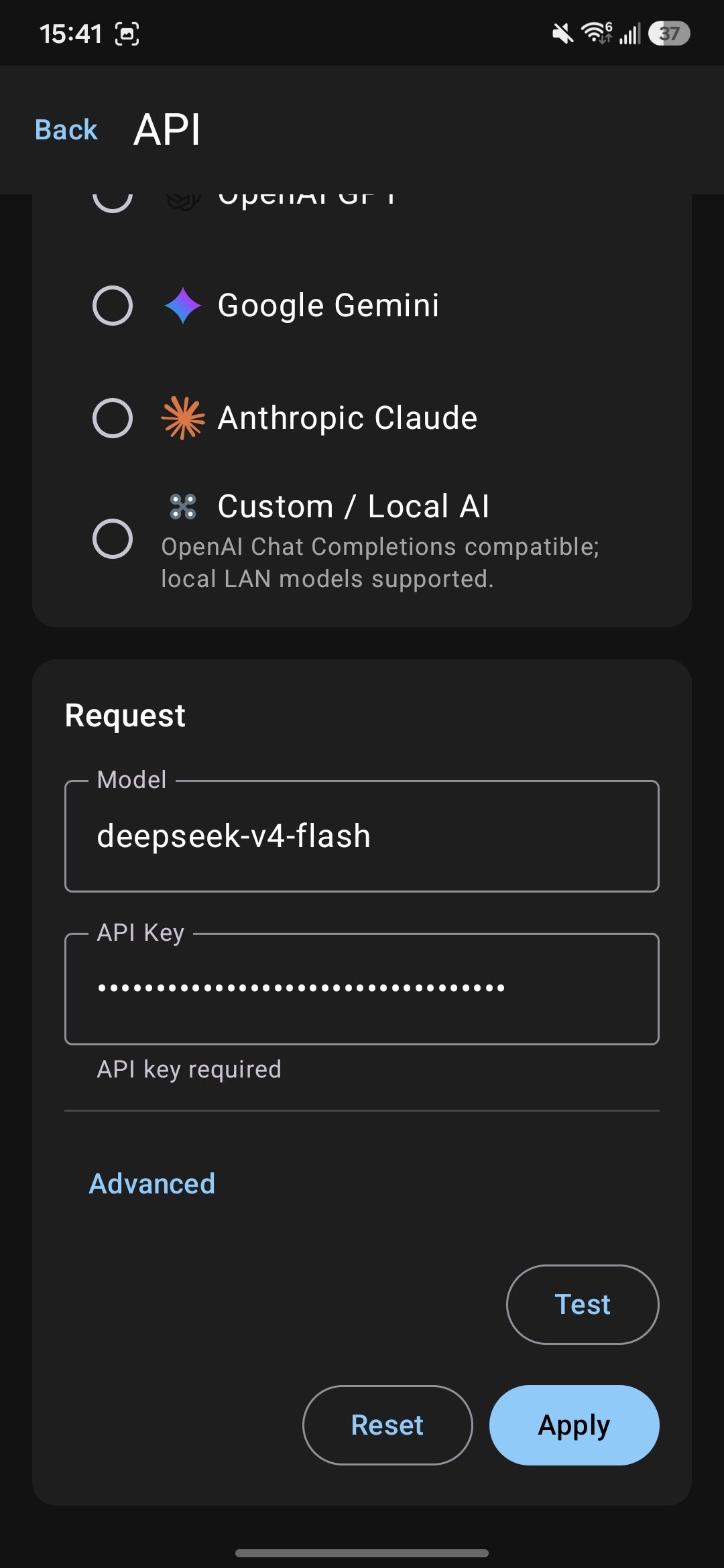
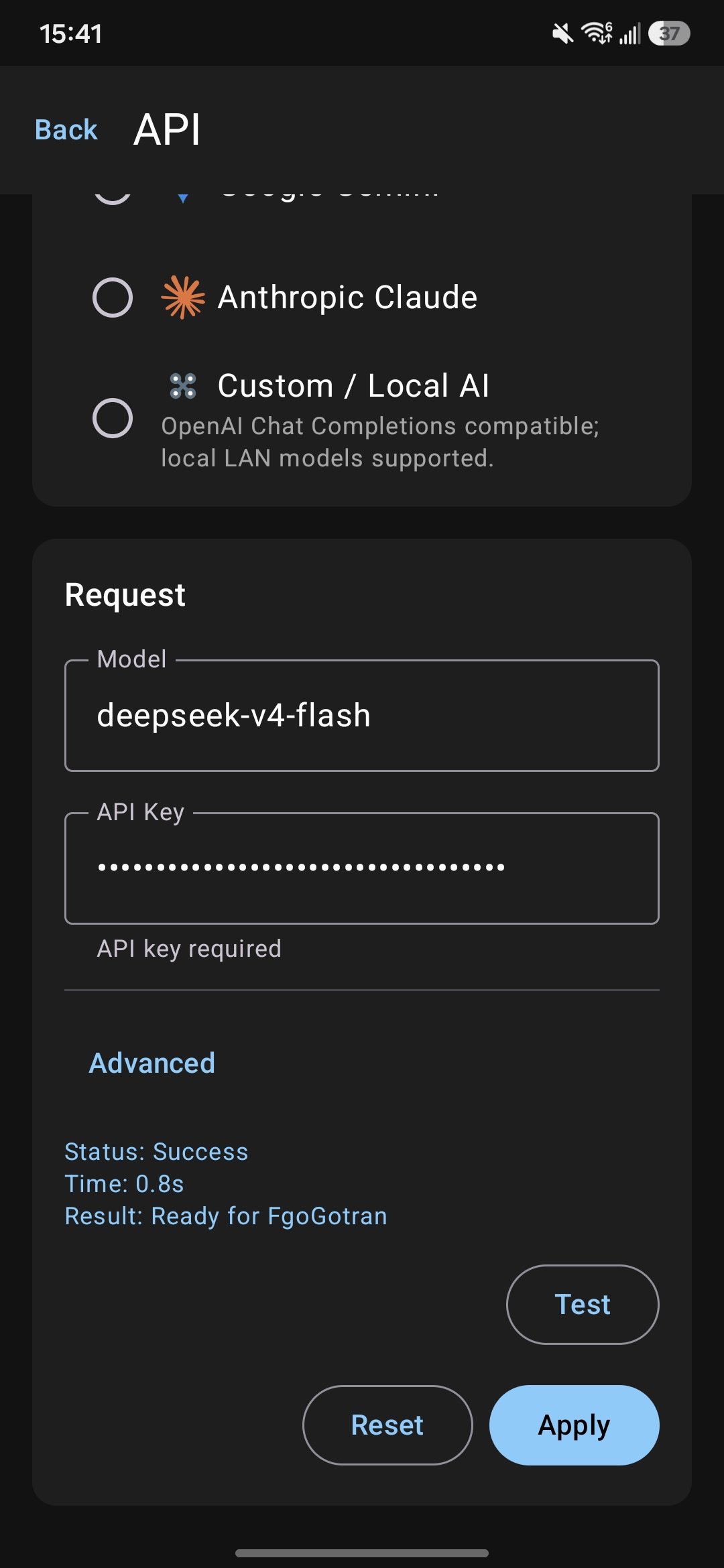
Open the settings page, pick an API provider and enter your API key. You can keep the default model name or enter one from the provider's docs.
After “Test API” succeeds, remember to tap “Apply API settings”.
Save your Master name
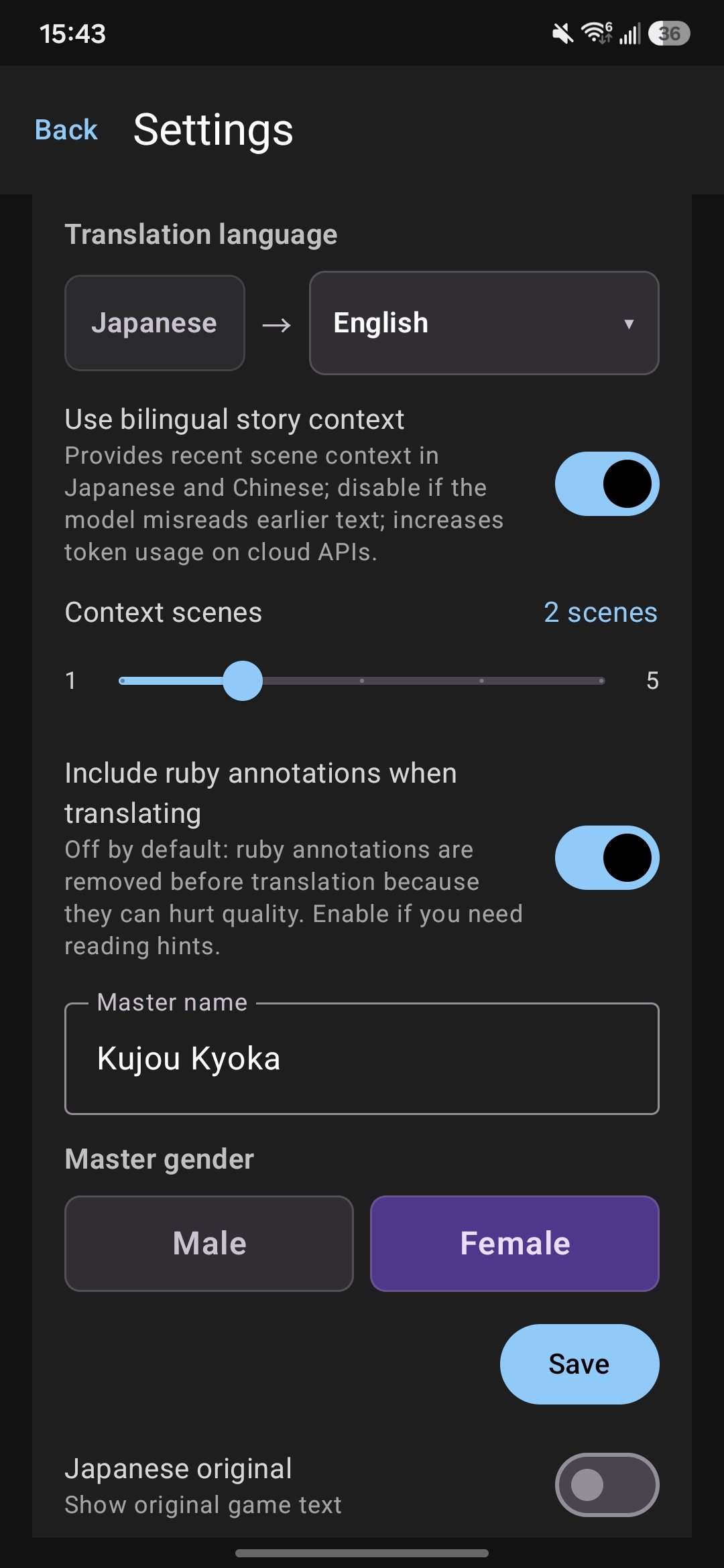
Enter your Master name and gender, then save. Make sure the name matches your Master name in FGO.
Start the service and open FGO
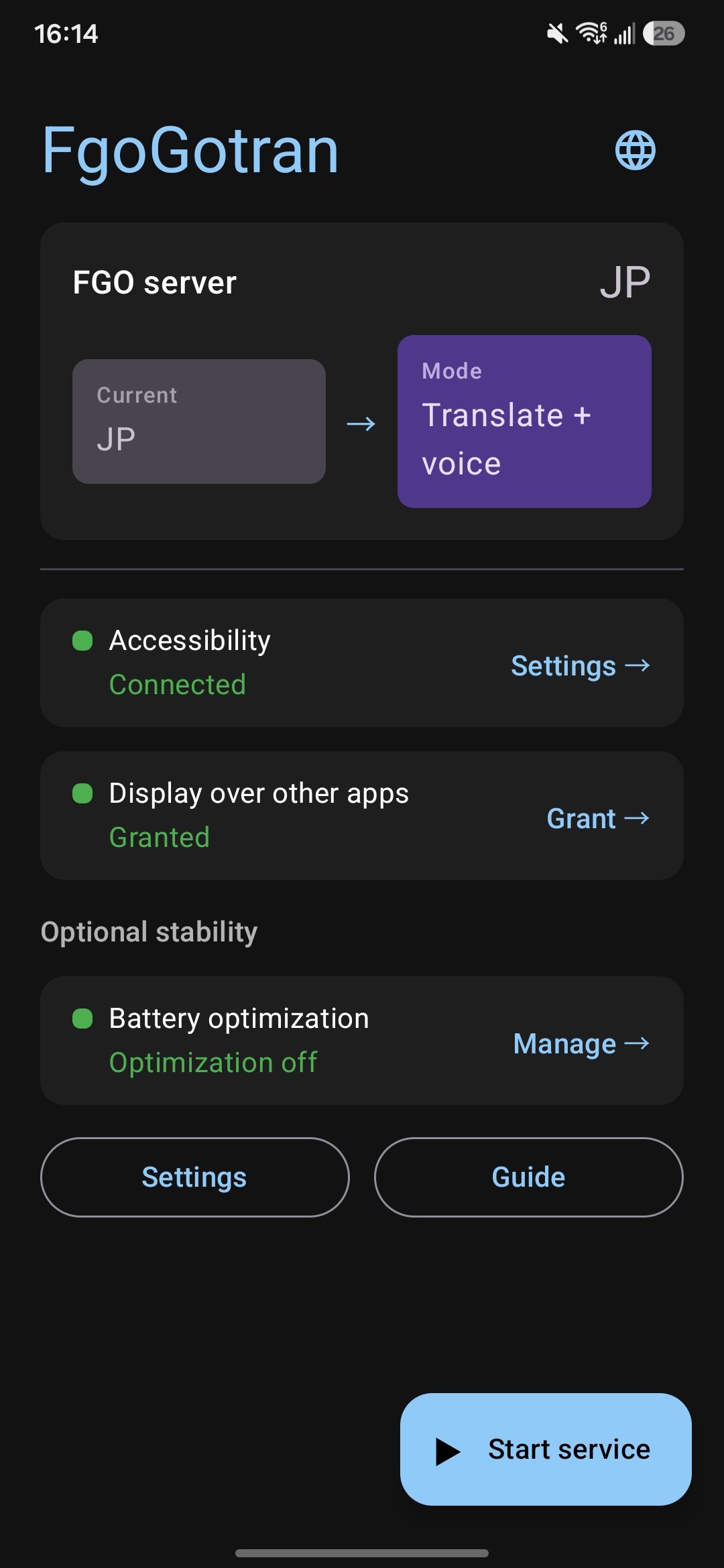
Go back to the home screen and tap “Start service”. Then open FGO and use the floating button to translate.
2. Floating button and translation modes
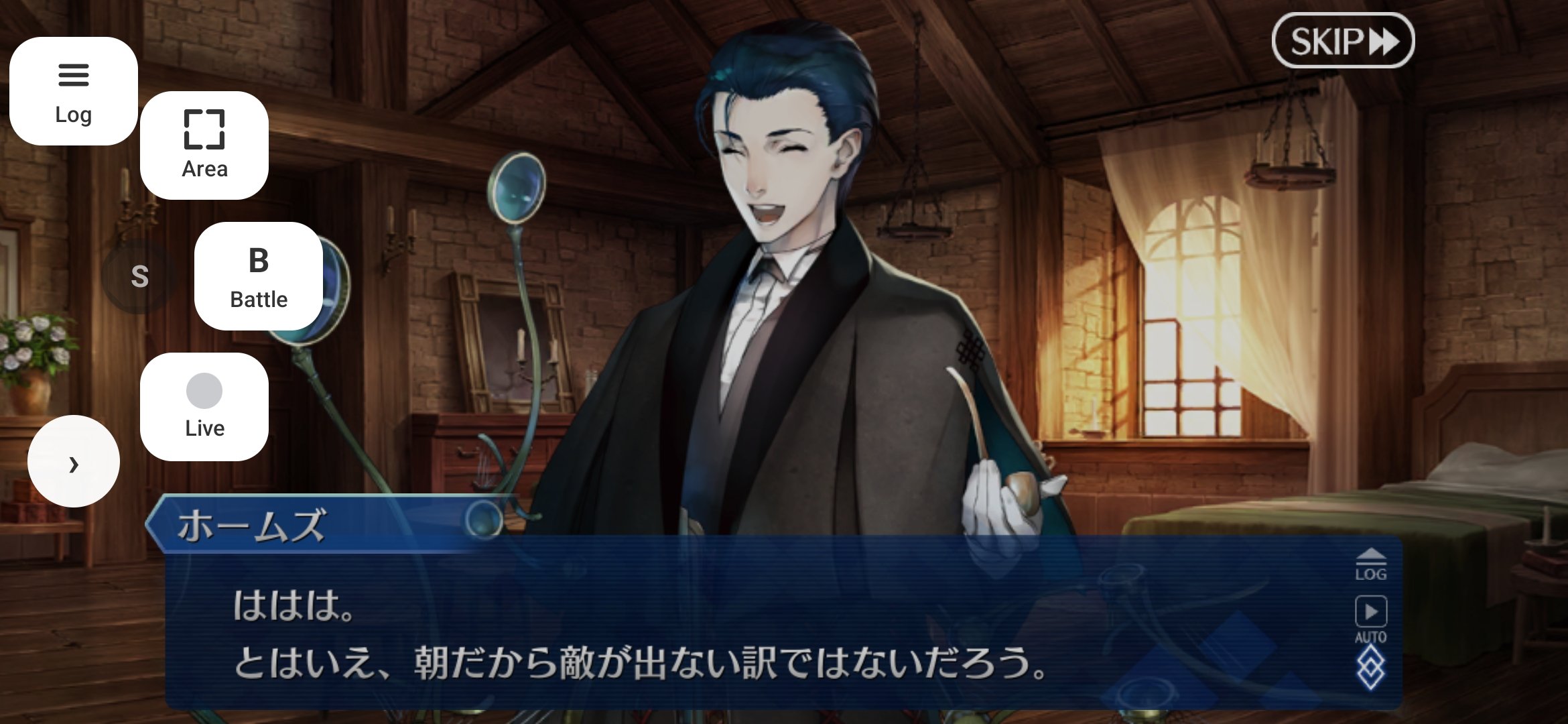
The floating button is the main entry point inside the game. Different modes suit different reading paces.
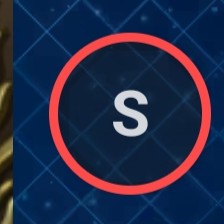
A red ring only means that tap failed — the service has not stopped. In manual or semi-auto mode you can tap again to retry.
Manual mode
For players who want full control. Tap the floating button to translate the current screen.
Semi-auto mode
For relaxed reading with manual control over choices. Dialogue is translated automatically; choices are translated when you tap.
Auto mode
For hands-off reading. The app watches for screen changes and refreshes the translation automatically.
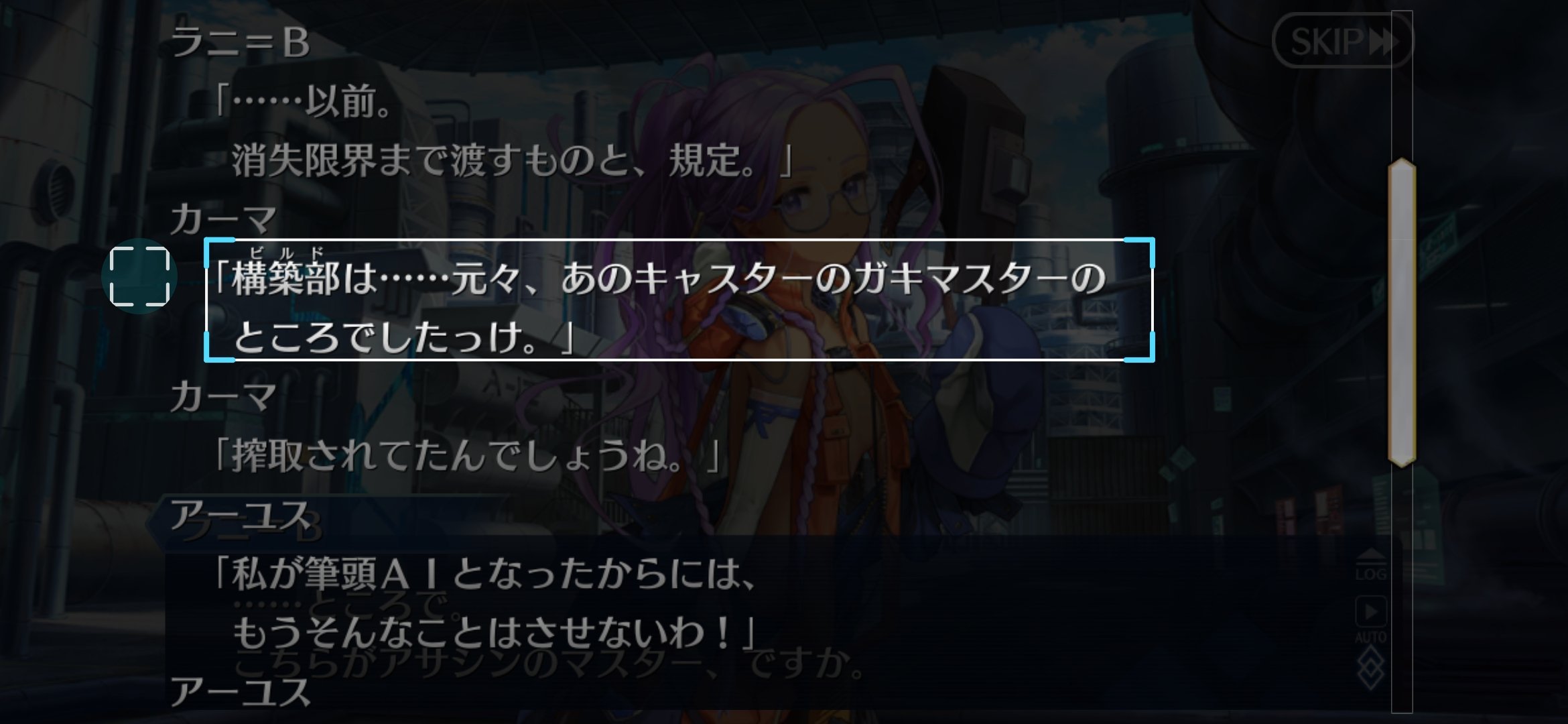
Crop mode
For non-story screens, or when recognition misses text. Drag to select an area and translate just that region.
Translation log
Review the character names, dialogue and choices recognized and translated in this session.
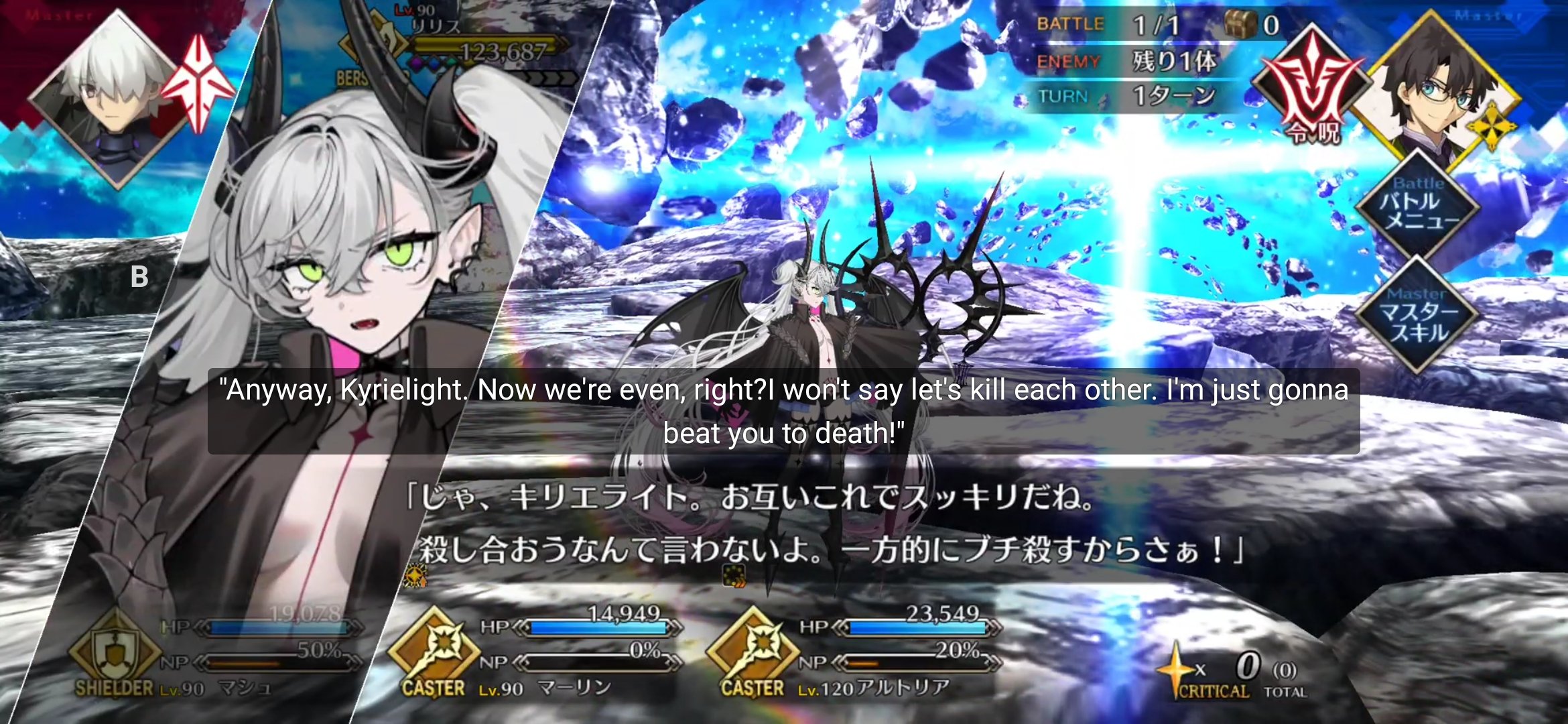
Battle subtitles
For players who don't want to miss in-battle dialogue. Locks onto the battle subtitle area only.
Open the translation menu
Long-press the floating button to open the translation menu, where you can switch modes, view the translation log, or stop the service.
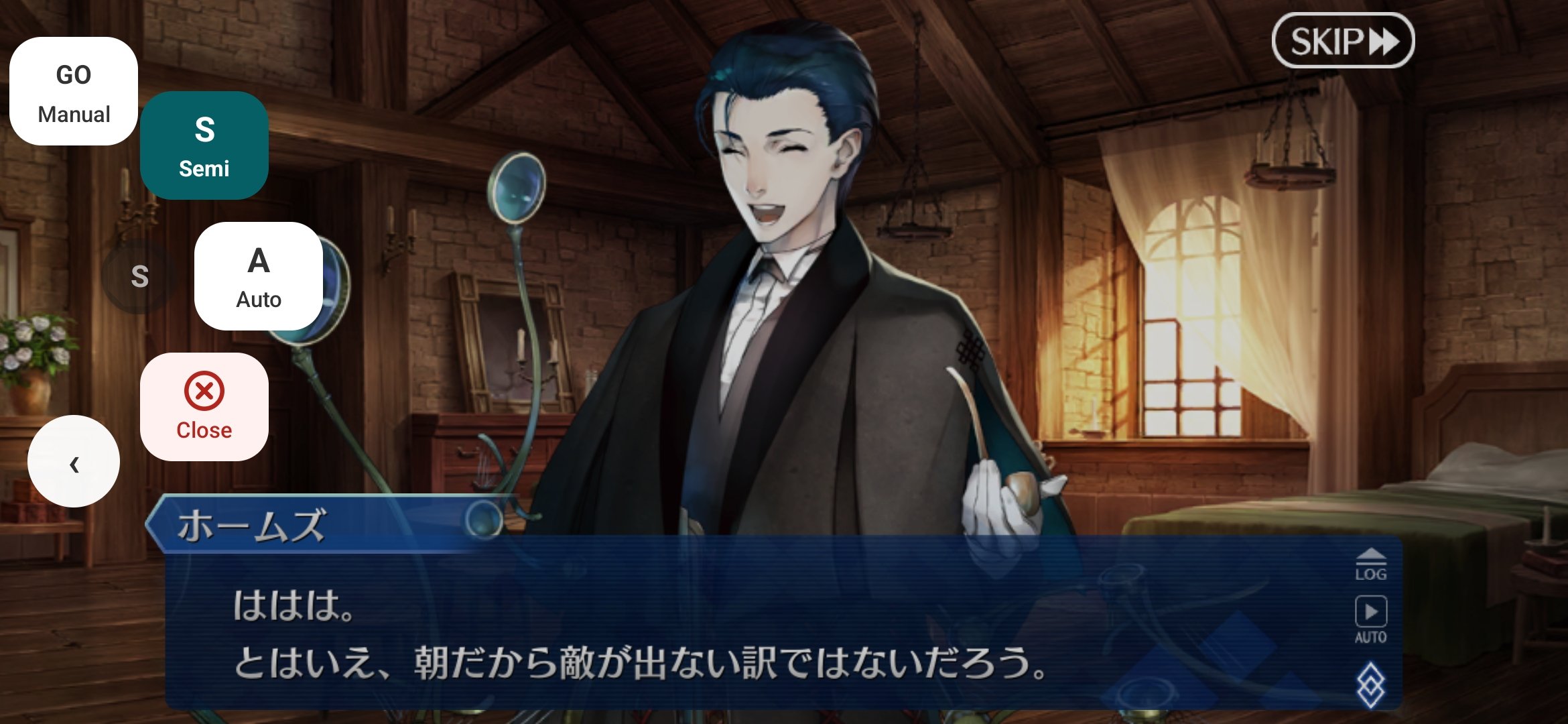
Check the current mode
The floating button shows the current mode, so you always know whether you are in manual, semi-auto, auto, crop or battle-subtitle mode.



Red ring
The red ring only appears in manual and semi-auto mode, and means this tap's recognition or translation failed. You can tap again to retry.

Crop mode
Crop mode lets you drag a region and translate just that area — useful for non-story screens or when automatic recognition misses text.
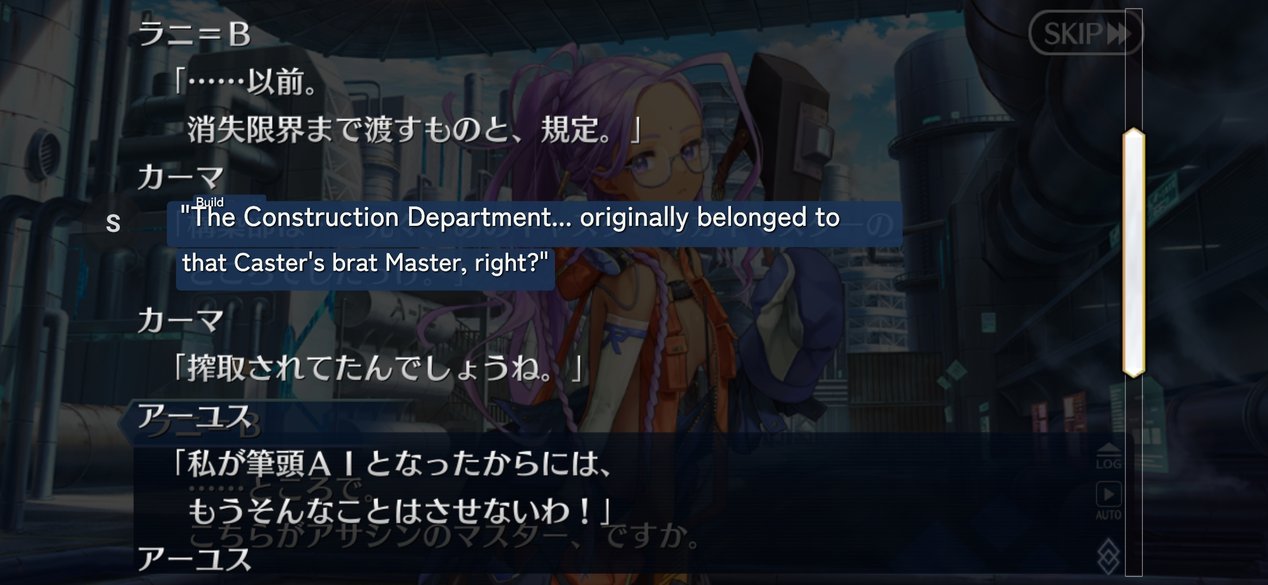
Battle subtitles
Battle-subtitle mode locks onto the battle subtitle area only.
Translation log
The translation log shows the character names, dialogue and choices recognized and translated in this session.